
Question 1
Write the SQL to create the KENNEL table. The picture below details the columns, data types and constraints for this table. Make sure you name your constraints.

Now enter your SQL in the Query window on your left. To verify that you created all the necessary columns, enter a SELECT statement. Click on the Try IT button to test your query. You MUST do this in order for the grader to work. Your output should look like the following:
KennelID    KennelLength KennelWidth Capacity
----------- ------------ ----------- -----------
If your output matches the output from above, click on the Check It button. When Codio runs this query it will run your SQL code and compare your output to what the answer needs to be. It will also reference the data dictionary to make sure you created your columns correctly. If your output matches the output listed below after you clicked on the Try It button and you are still getting an error, it may be due to the spelling of your column names, the data types you entered and/or your constraints.

Make sure you click on the Load Pampered Pup Database button followed by the Try IT button BEFORE clicking on the Check IT button.
Question 2
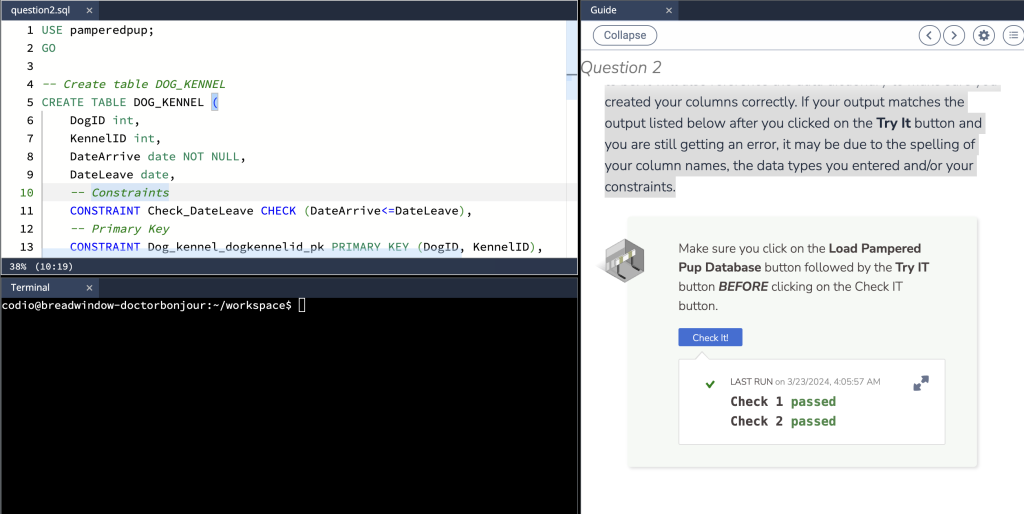
Write the SQL to create the DOG_KENNEL table. The picture below details the columns, data types and constraints for this table. Make sure you name your constraints.

Click on the button below to create the Pampered Pup database. You MUST do this in order for the grader to work.
———– ———– —————- —————-
Question 3

CategoryID CategoryName CategoryDesc
———– ————— ——————————
(0 rows affected)
ProductID ProductName ProductDesc WholesaleCost RetailCost CategoryID
———– ————— —————————— ————- ———– ———–
(0 rows affected)
ProductID OrderID Quantity Price
———– ———– ———– ———–
(0 rows affected)
If your output matches the output from above, click on the Check It button. When Codio checks your query it will reference the data dictionary and your database to make sure you created your columns correctly. If your output matches the output listed above after you clicked on the Try It button and you are still getting an error, it may be due to the spelling of your column names, the data types you entered and/or your constraints. You may want to copy and paste your code into SQL Server Management Studio and attempt to debug your code from there.


